Multi-language subtitles in Seedr: add, switch, search in-player

Subtitles in any language, inside the Seedr player
Seedr now supports multi-language subtitles with a built-in OpenSubtitles search. You can add, switch, or upload subtitle tracks directly in the video player. No separate app. No restart of the video. No fiddling with separate subtitle files.
This feature is live in both V1 and V2. The V2 interface is cleaner but the capability exists in both.
Why we built this
Sharing video across languages — language learning, multilingual teams, family recordings — used to mean one of two things:
- Sit through without subtitles and miss half the dialogue.
- Subtitles travel with the video — no separate file to manage, no timing mismatch, no manual loading.
That flow breaks entirely when you are watching in the browser. Most browser-based video tools do not accept external subtitle files at all. Seedr used to be limited to whatever subtitle track was already embedded in the file.
Users kept running into the same situations:
- A film in Spanish, user watches in English.
- A documentary in English, user watches in Portuguese for accessibility.
- A tutorial where the speaker has a heavy accent, user adds same-language subs to follow better.
- A foreign-language learner using subtitles to pair text with speech.
Our answer: put subtitle management in the player itself, with a search that pulls from OpenSubtitles.
What changed
You can now do all of the following from inside the Seedr video viewer:
- Pick a subtitle track from embedded options in the file.
- Search OpenSubtitles by title or language.
- Upload your own .srt file if you already have one.
- Switch tracks mid-playback without restarting the video.
- Watch with subtitles in a different language from the audio track.
Supported languages on OpenSubtitles include English, Spanish, French, German, Portuguese, Italian, Dutch, and many more. The search pulls real results with real download counts, so you can pick the best-rated version.
Before: download .srt from a sketchy site, open VLC, load file, load sub, pray the timing lines up. After: click CC, type the language, pick a match, done.
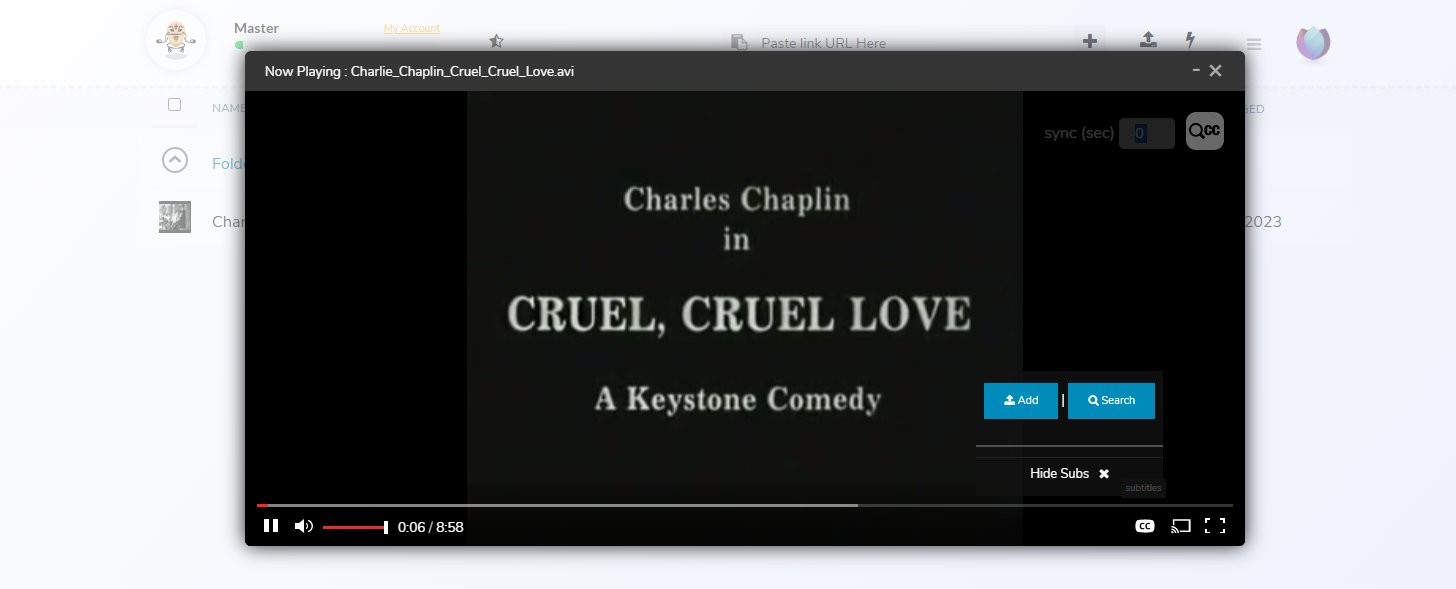
How to use it today
In V1 / older interface
- Open the file in the Seedr Video Viewer.
- Click the CC icon at the bottom right of the player.
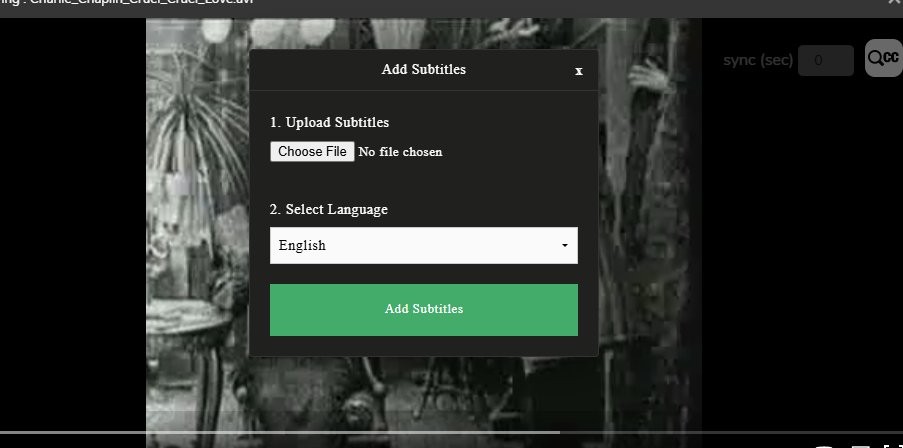
- Pick Add.
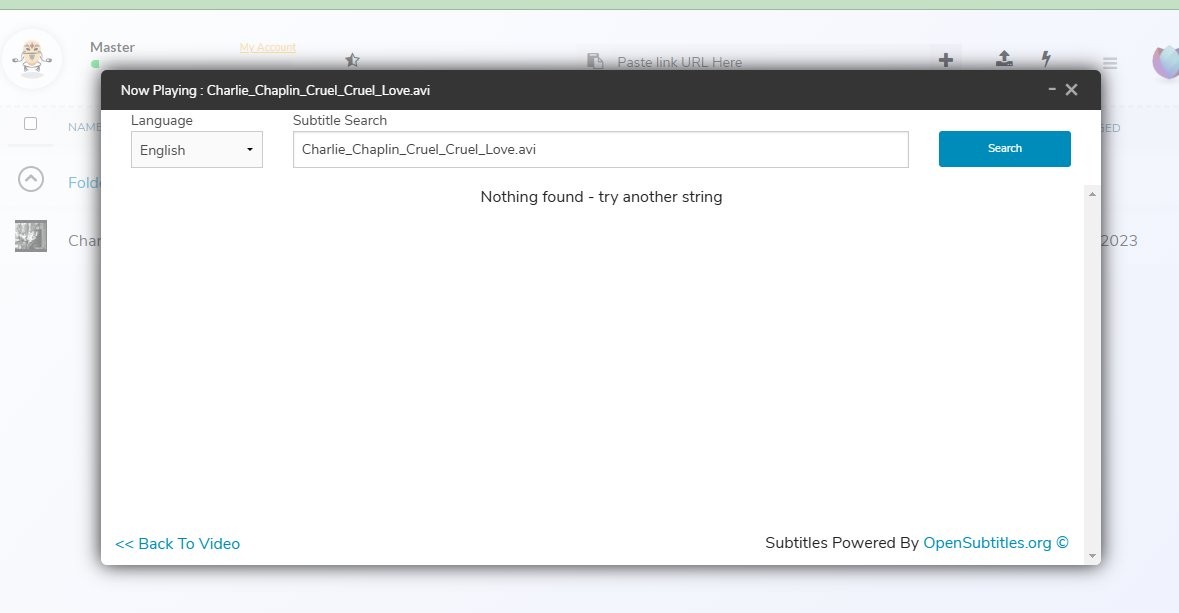
- Choose a language from the list, or search for a specific subtitle file.
- Or upload your own .srt.
In V2
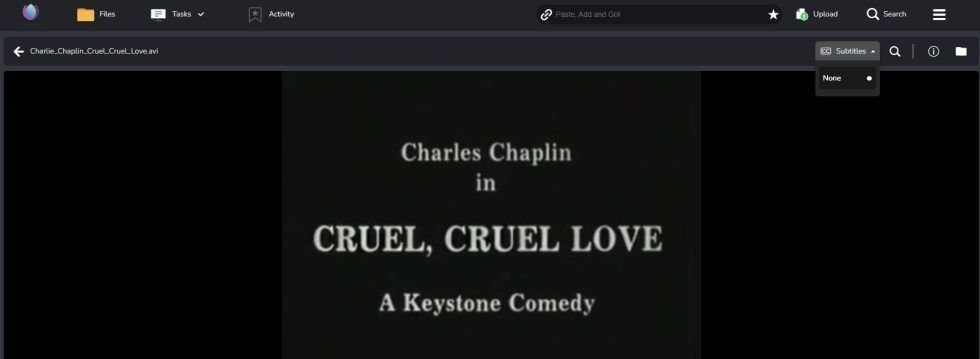
- Open the file in the V2 Video Viewer.
- Find the subtitles icon on the right side of the player.
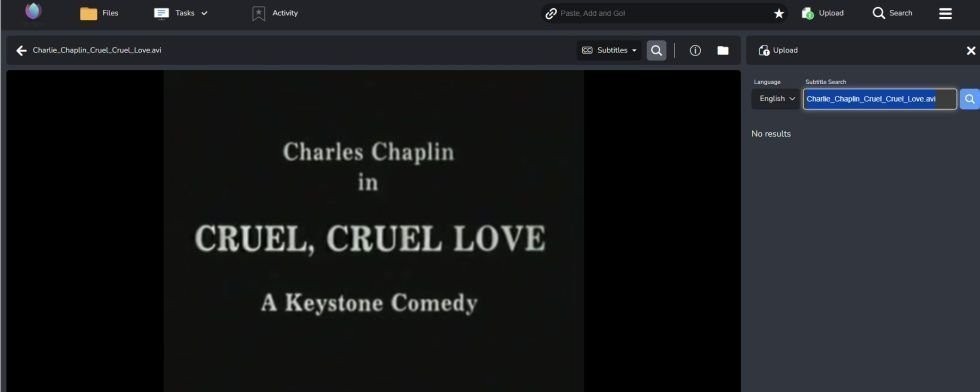
- Click to open the subtitles panel.
- If a track in your preferred language is already listed, click it.
- If not, click the search icon next to the language menu.
- Type the video title or the language you want.
- Browse results and pick one.
- It loads into the player immediately.
To switch tracks mid-playback, just open the panel again and pick a different language. The video keeps playing.
Tips for getting the right subtitle
- If there are multiple matches, pick the one with the highest download count. It is usually the most accurate.
- If timing looks off by a second or two, try a different version - some are for different cuts of the same film.
- You can upload a .srt file yourself if you have one that you know is good.
Why you would use this
- Language learning: watch with subs in the language you are learning. Read and hear simultaneously.
- Accessibility: full dialogue available for deaf or hard-of-hearing viewers.
- Watching together: you speak one language, your partner another. Pick their language for subs.
- Hard dialogue: heavy accents, whispered scenes, bad audio mix - subtitles fix it.
- Foreign films: keep the original audio, read subtitles in your language.
What is next
A few things in progress:
- Cleaner subtitles UI: bigger tap targets, better typography, fewer steps.
- Saved subtitle preferences per language, so Seedr remembers your choices.
- Subtitle support that carries over to offline playback in V2 - add the track before you go offline.
- Better handling of multi-audio-track files alongside subtitles.
Wrap
No more hunting for .srt files. No restart of the video. Subtitles in the player, in any of a dozen-plus languages, from the OpenSubtitles database or your own upload.
Was this article helpful?
Related Articles

Use the Seedr Roku plugin — install and setup
This tutorial explains how to use Seedr on Roku, covering setup, basic navigation, and common usage patterns. It walks through the steps needed to access your content on a Roku device and clarifies how the Seedr interface behaves on TV.
Connect Seedr to Plex via FTP (Pro plan guide)
Set up Seedr with Plex via FTP connection. Access your cloud files in Plex for seamless media viewing.

Connect Seedr and Plex with WebDAV (Full Guide)
Connect Seedr to Plex using WebDAV. View your cloud saves directly through Plex without local storage.