How to open HEIC photos online on Windows, Android, or any browser
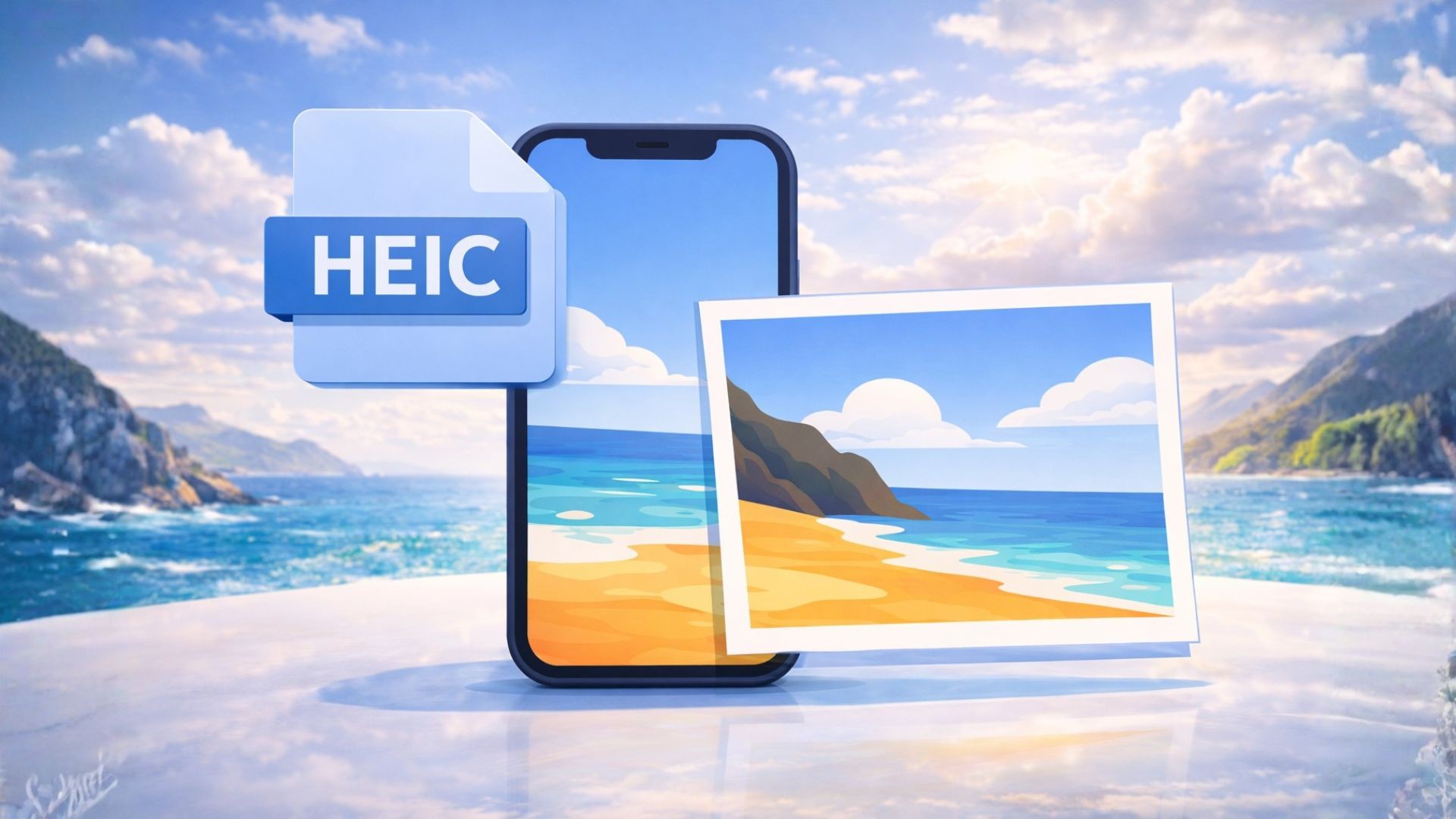
Open HEIC photos online
Someone AirDropped you a batch of iPhone photos. You drop them into Windows Explorer, double-click, and get a blank preview or a codec error. Android and Windows do not always handle HEIC cleanly, and the official fix — installing Apple's HEIF extensions, or buying a third-party codec — is a hassle on a borrowed device or a phone. Opening HEIC photos online skips that install step entirely.
This guide covers what HEIC actually is, the common ways to view it, how to do it in Seedr, and the quirks that catch people out.
What HEIC is and why it exists
HEIC stands for High Efficiency Image Container. It wraps images encoded with HEIF (High Efficiency Image File Format), which is the still-image cousin of HEVC (H.265) video compression.
Apple switched iPhones to HEIC in 2017 (iOS 11). A HEIC photo takes roughly half the storage of the same image as JPG, with similar or better visual quality. HEIC also stores extras JPG cannot — burst photos as a single file, image sequences, depth maps, edit history, and transparency.
The downside is compatibility. JPG is universal. HEIC is not. Support is solid on Apple devices and on recent Android and Windows versions, but "recent" is doing a lot of work. Windows 10 and 11 need the free HEIF Image Extensions and the paid HEVC Video Extensions (about a dollar) to view HEIC thumbnails and originals in the Photos app. Older Windows builds, many work machines, Linux distros, and older Android phones need a converter or a third-party viewer.
The practical effect: iPhone photos that AirDrop cleanly to a Mac land as unopenable placeholders on a Windows PC that has not been set up for them.
The usual ways people open HEIC
Several options, each with a trade-off.
- Apple's HEIF extensions on Windows. Free from the Microsoft Store. Requires admin rights and a Microsoft account.
- CopyTrans HEIC for Windows. Free for personal use. Adds HEIC support to Windows Explorer previews.
- Set the iPhone to capture JPG. Settings → Camera → Formats → Most Compatible. Fixes future photos, not existing ones.
- AirDrop or iCloud "Automatic" format. iOS can auto-convert to JPG for non-Apple devices. Works sometimes; silently fails other times.
- Online HEIC converters. Upload, get a JPG back. Watch for file-size limits, batch caps, and retention policies.
- A viewer app like IrfanView or XnView. Works offline, requires an install.
For a single photo, any of these works. For a batch you want to browse, tag, and archive, the install-and-convert approach gets old fast.
Doing it in Seedr
Seedr converts HEIC on the server and serves the result as a regular image in your browser viewer. You see the photo without installing anything on the device you are using.
- Sign in to Seedr.
- Upload your HEIC files — drag and drop them into the browser, use the file picker, or paste a link from iCloud Shared Albums or another URL.
- Wait a moment for them to appear in your cloud.
- Click a HEIC file. It opens in the Seedr viewer as a normal image — no codec prompt, no conversion step visible to you.
- Browse the folder. Arrow keys or the viewer's next/previous buttons move through the set.
- If you need a local JPG copy, right-click → Convert and pick JPG or PNG. The converted file is added to your cloud, and you can save it to your device.
- The original HEIC stays untouched.
Seedr decodes HEIC server-side so the browser only receives a standard image. Your originals are not re-encoded or altered unless you explicitly convert them.
Tips and edge cases
HEIC has a few quirks worth knowing:
- Live Photos. An iPhone Live Photo is an HEIC still plus a short MOV video. When you share or export it, you usually get both files. Seedr shows the HEIC normally; the paired MOV plays in the video player.
- Burst photos. A burst is stored as a single HEIC with multiple images inside. Most viewers show only the "key" image. Exporting individual frames from a burst needs a specialised tool.
- Depth data. Portrait-mode photos embed a depth map. Viewing shows the normal image; depth editing requires an Apple tool.
- Edit history. An iPhone photo that has been edited stores the original plus the edit operations. Non-Apple viewers see only the final rendered image.
- HEIF vs HEIC. HEIF is the format family; HEIC is the Apple-flavoured file extension. Some Android phones save as .heif. Seedr handles both.
- Big batches. A thousand HEIC photos from a vacation is a lot of upload time. Free plans have a storage cap — check it before you drag the whole library in.
- RAW photos. HEIC is not RAW. If you shoot ProRAW (.dng), that is a different format with different support.
If a HEIC will not open anywhere, the file may be corrupt or an unusual variant. Try re-exporting from the iPhone.
How this fits the rest of your workflow
The point of a cloud viewer is that the next step is already wired.
- Mount Seedr over WebDAV, FTP, or SFTP and your photos show up as normal image files in your desktop file manager — previews included.
- Convert HEIC to JPG or PNG with a right-click when you need a copy for a tool that cannot read HEIC.
- Create a ZIP of an album for download when you need a local copy to email or archive.
- Browse large batches in the viewer without re-downloading anything to your device.
- Keep photos alongside the documents, videos, and archives in the same workspace, organised the way you want.
One cloud, one viewer, no codec stack to maintain.
Wrap up
HEIC is fine on iPhones and awkward everywhere else. Let the cloud decode it.
Was this article helpful?
Related Articles
Connect Seedr to Infuse (iOS, tvOS, macOS)
Learn how to easily connect your Seedr account to the Infuse app using WebDAV or FTP. View 4K media directly to your Apple TV or iOS device without saving.
Three ways to add links and files in Seedr V2
Learn how to use Seedr V2’s Link button to add media links, scan webpages, upload files from your device, and share to Seedr via PWA or browser extensions.
How to watch cloud videos offline with Seedr V2
Take your cloud media anywhere. Save videos for offline viewing on any phone or laptop with Seedr V2 — no reliable internet needed.