How to watch cloud videos offline with Seedr V2

Watch cloud videos offline with Seedr V2
Offline Mode in Seedr V2 lets you save any file from your cloud to your device and watch it with no connection. One tap to mark a file offline. Switch to airplane mode. Press play. No buffering.
This is a V2-only feature, Premium plans, rolling out gradually. Here is exactly how it works.
Why we built this
Streaming from the cloud is great until the connection disappears. Flight attendant says airplane mode. Subway tunnel. Rural road. Hotel WiFi that charges extra for "streaming". Cached pages don't help when what you wanted was a 90-minute movie.
The usual workarounds:
- Download the file to your device the slow way, then manually open it in a separate player.
- Pay for mobile data abroad.
- Give up and doomscroll.
Seedr's cloud library is supposed to be your single place for video. Offline Mode closes the gap when your signal disappears.
What changed
You can now mark any video in your Seedr library for offline playback. Seedr caches the full file to your device at a resolution you pick. When you open the file later with no connection, it plays from local storage.
Before: "I'll be offline for 6 hours tomorrow, let me download these manually to my laptop and find a player that handles MKV."
After: tap Save for offline, pick HD, done. Watch on your phone in airplane mode.
A few technical points:
- We cache the full file locally, not a stream segment cache.
- You pick the resolution per file: SD, HD, or Full HD / 4K.
- Subtitles and alternate audio tracks work offline if you add them before you go offline.
- Playback speed control works offline.
- Originals stay in your cloud. Removing a local copy frees device storage, not cloud storage.
How to use it today
The click path is three steps:
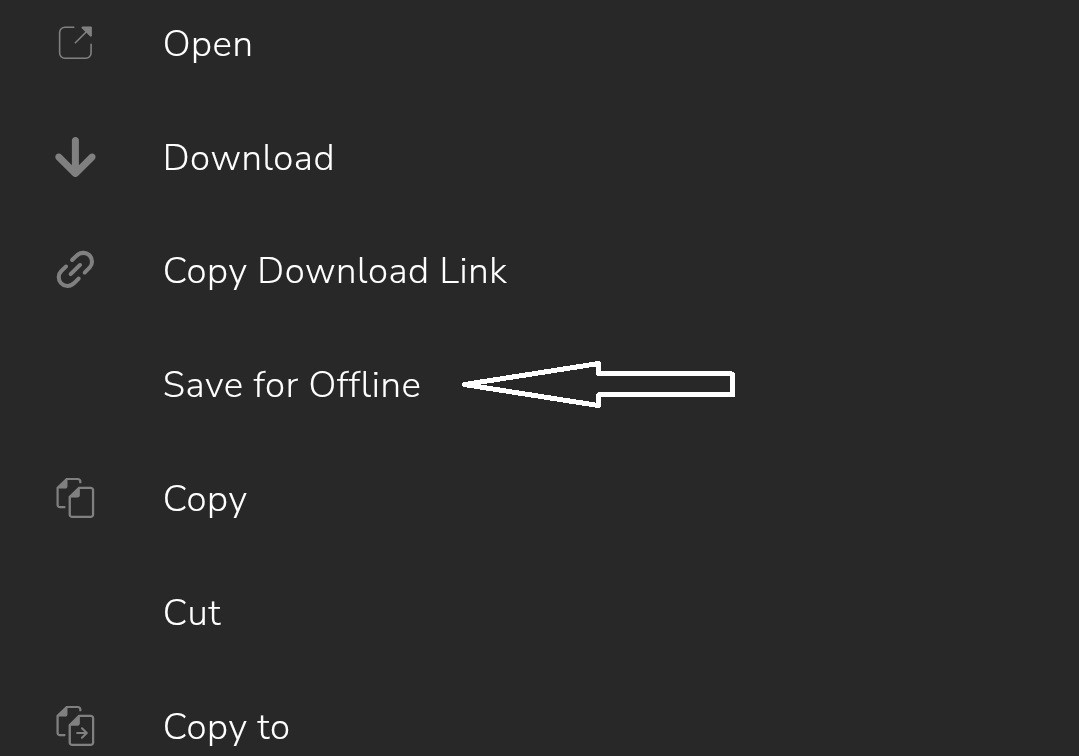
- Open any video in your Seedr library on mobile or desktop.
- Tap the ... menu next to the video.
- Select Save for offline and pick a resolution.
Seedr shows progress while the file caches. When it is done, the file has an offline badge. Open it later with no signal and it plays immediately.
To prepare subtitles and audio tracks for offline:
- Before you lose connection, open the file once online.
- Use the subtitles panel to pick a language or search OpenSubtitles.
- Pick your preferred audio track if the video has multiple.
- Those choices are saved with the offline copy.
Managing offline storage
Video files are large. Local storage fills up.
To see what is cached locally:
- Open the file menu.
- Pick Manage offline - this takes you to your Offline Library.
- Remove files you no longer need.
Removing a local copy does nothing to the cloud. The original file is still in Seedr. You can re-cache it later if you want it back on the device.
Tips for keeping storage sane:
- Drop to SD for commutes. You will not notice on a phone screen.
- Cache one episode at a time instead of a whole season.
- Clear the Offline Library after a trip.
Where it shines
Offline Mode earns its keep in these situations:
- Flights: queue up a trilogy the night before. No in-flight WiFi surcharge, no buffering.
- Commutes: playback stays solid through tunnels, subway, spotty LTE.
- Travel abroad: skip hotel WiFi and expensive roaming data.
- Road trips: keep kids in the back seat busy without fighting a hotspot for bandwidth.
What is next
Offline Mode is rolling out gradually. A few things still coming:
- Finer-grained storage controls - "cache up to X GB" cap.
- Smarter subtitle pre-fetching.
- Better feedback when a cache is interrupted mid-way.
- Offline badge visible in folder listings, not just on individual files.
Wrap
Mark, cache, fly, play. Your Seedr library comes with you even when your signal does not. Originals stay safe in the cloud. Local storage is yours to manage.
Offline Mode requires V2 and Premium. Premium accounts usually get V2 access within about a week.
Take your library offline
Was this article helpful?
Related Articles
How to open HEIC photos online on Windows, Android, or any browser
Open iPhone HEIC photos from any device in Seedr’s cloud viewer — no conversion, no codecs, no extra apps — and keep them organized alongside your other files.
Connect Seedr to Infuse (iOS, tvOS, macOS)
Learn how to easily connect your Seedr account to the Infuse app using WebDAV or FTP. View 4K media directly to your Apple TV or iOS device without saving.
Three ways to add links and files in Seedr V2
Learn how to use Seedr V2’s Link button to add media links, scan webpages, upload files from your device, and share to Seedr via PWA or browser extensions.