Three ways to add links and files in Seedr V2

Seedr V2 rebuilds the add-to-cloud flow around one button and one paste. You can add a link, scan a webpage for downloads, upload a local file, or share straight from your phone — all without switching tabs.
Why we changed the add-flow
In V1, adding content meant picking the right input: link field, upload area, or fetch-from-link. Users often pasted into the wrong one and got an error. On mobile, sharing a link meant copy, switch tabs, log in, paste.
V2 collapses that into a single entry point that figures out what you gave it. A file link, a webpage, or a local file — the same button handles all of it.
What's new
One button, four inputs:
- Direct file link — pasted text goes straight to the queue.
- Webpage link — Seedr scans the page and shows a popup with every downloadable file it finds.
- Local file — opens a picker; Seedr handles the transfer.
- Shared-from-system — if Seedr is installed as a PWA, it appears in your OS share menu.
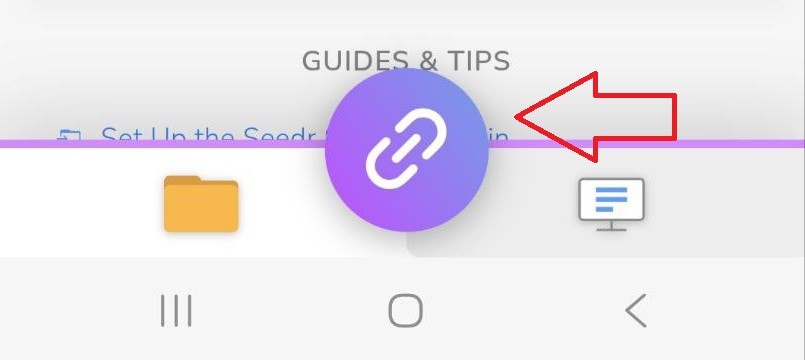
Before V2, each of these lived in a different place. The link field was separate from the upload area, and link-scanning lived behind a "Fetch from link" action. Now they all start from the same Link icon.
How to use it today
Paste a link manually
- Open the Seedr V2 dashboard.
- Tap the Link icon at the bottom centre of the screen.
- Paste your link into the field.
If it's a direct file link, you get a confirmation toast and the task starts. If it's a regular webpage, Seedr scans for downloadable URLs and shows them in a popup — pick the files you want and they queue up.
Upload from your device
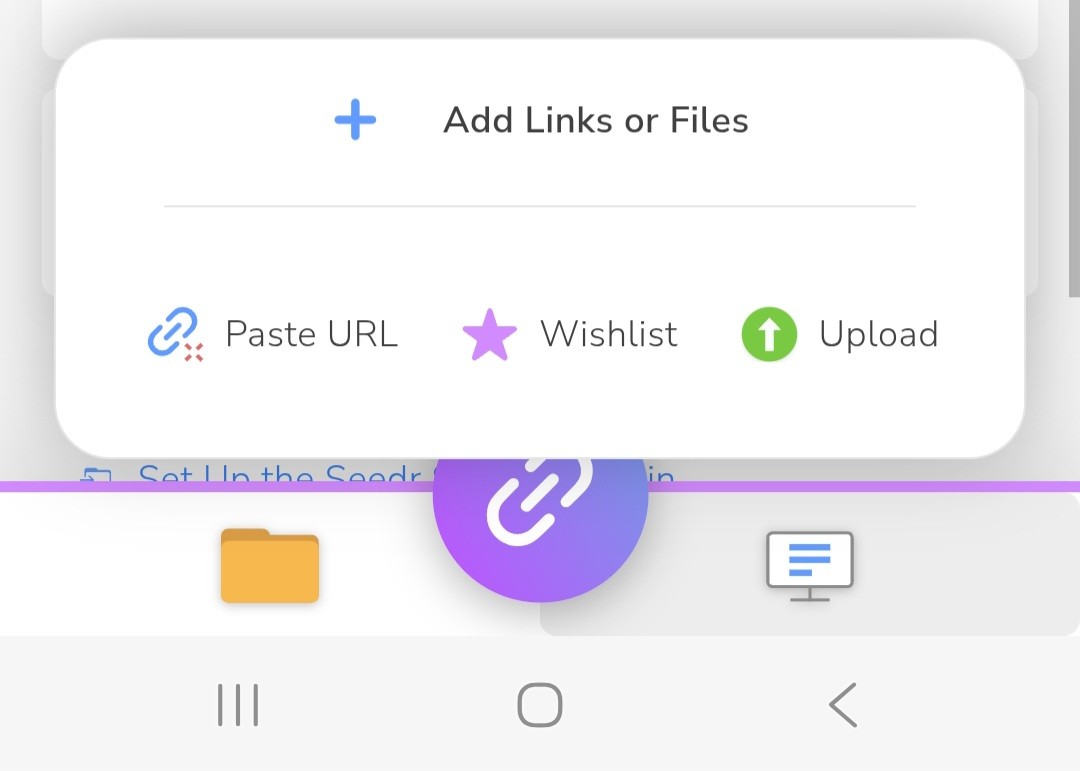
- Tap the Link icon.
- Choose Upload from device in the menu.
- Pick a file from your phone or computer.
Keep the page open while the transfer runs. A refresh usually clears any stall.
Share to Seedr via PWA
Install first:
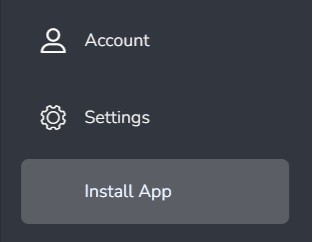
- Open the in-app menu (top-left on mobile, top-right on desktop).
- Select Install App.
After install, Seedr appears in your system share sheet.
- Mobile: long-press any link, tap Share, pick Seedr. The task queues in the background.
- Desktop: click a link. Your browser asks which app to open it in — choose Seedr and tick Always allow if you want to skip the prompt next time.
Use the browser extension
If you prefer not to install the PWA, the Chrome and Firefox extensions work too.
- Install the Seedr extension from your browser's store.
- Right-click any link on a webpage.
- Pick Add to Seedr from the menu.
The page stays open; the save runs in your Seedr account.
Roadmap
The V2 add-flow is live for alpha and premium users. A few pieces are still rolling out:
- A first-run tutorial that walks new users through the four inputs.
- Better feedback when webpage scans find nothing usable.
- Deeper handoff from the PWA share sheet to folder selection.
We're tracking feedback on the V2 waitlist channel. If the share-menu integration doesn't appear after installing, reinstall the PWA and make sure you granted notification permission — that step registers Seedr as a share target.
Wrap
One button, four ways to add: paste, scan, upload, share. That's the V2 flow.
Want priority access? Premium members skip the V2 waitlist.
Ready to try the new Seedr V2 add-flow?
Was this article helpful?
Related Articles

How to open HEIC photos online on Windows, Android, or any browser
Open iPhone HEIC photos from any device in Seedr’s cloud viewer — no conversion, no codecs, no extra apps — and keep them organized alongside your other files.
Connect Seedr to Infuse (iOS, tvOS, macOS)
Learn how to easily connect your Seedr account to the Infuse app using WebDAV or FTP. View 4K media directly to your Apple TV or iOS device without saving.
How to watch cloud videos offline with Seedr V2
Take your cloud media anywhere. Save videos for offline viewing on any phone or laptop with Seedr V2 — no reliable internet needed.