How to view and organise images online, no software
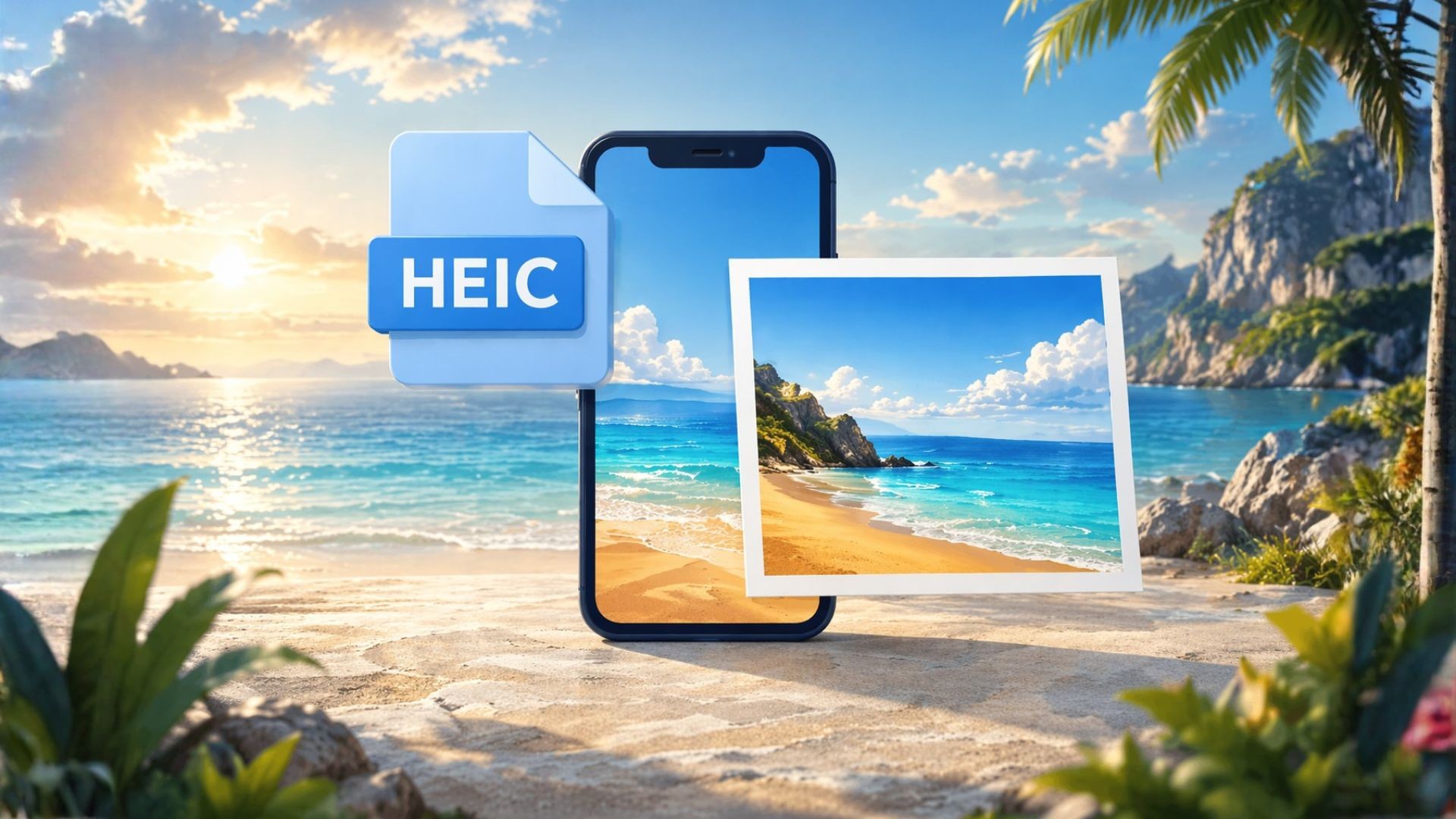
View and organise your images online, without installing anything
You want to look at a folder of photos without plugging in a cable, installing a photo app, or sending the files through a messaging app just to see them on another screen. Short answer: upload the images to Seedr, click one, and it opens in the browser. JPG, PNG, WebP, and HEIC all work. The folders you create in Seedr behave like a photo app you can reach from any device.
This guide walks through what the browser-based image workflow actually looks like, how the common alternatives fall short, and the specific pitfalls (especially with HEIC photos from iPhones).
Why viewing photos online is a real problem
Photos arrive from different places in different formats. The same image might come from:
- An iPhone, which saves as HEIC by default
- An Android phone, usually JPG
- A modern web download, often WebP
- A scan, often PDF or TIFF
- A design asset, possibly PNG, WebP, or an uncompressed TIFF
Each format has a player that loves it and a player that refuses it. That is why "just open the file" fails more often than it should.
Common cases where you hit this:
- Product photos before a launch — need reviewing in order, on whatever device is nearest
- Scanned documents for a visa or job application — need organising and checking
- Reference images for a design project — best kept together and browsable quickly
- Event photos — need a pass before anyone else sees them
- iPhone photos on a Windows laptop — HEIC files that simply refuse to open
- Moving a folder between phones — photos should not need a desktop detour
The usual ways people solve it
Local photo apps (Apple Photos, Windows Photos, Google Photos desktop). Good viewers on the device they run on. Tied to a specific OS or account. Moving a library between ecosystems is painful.
Cloud photo services (iCloud, Google Photos, OneDrive). Great if you already live in one. They assume your whole photo library is there. Single files dropped in feel out of place. HEIC handling varies between services.
Image hosts (Imgur, Catbox). Built for sharing one-off images publicly. Not for organising hundreds of files. No folder structure worth using.
Opening locally with the OS viewer. Fast for one file. Awful for a folder you want to browse end-to-end on a different device later.
HEIC converters (online and offline). Help for one file at a time. Nobody wants to batch-convert 400 iPhone photos just to look at them.
The gap: a browser-based viewer that handles the formats you have, keeps folders you already set up, and works the same on any device.
Doing it in Seedr
Seedr is a cloud workspace with a built-in image viewer. Upload once, browse everywhere.
- Sign in to Seedr.
- Upload your images: drag-and-drop into the file manager, use the upload button, or paste a link and let Seedr fetch them server-side.
- Click any image. The viewer opens in the browser.
- Use the arrow keys or on-screen controls to move through the folder. No closing and reopening each file.
- Create folders by right-clicking in the file manager. Move images between folders by drag-and-drop.
- Log in on another device — the same folders, the same order, no transfer needed.
For HEIC files specifically: Seedr handles the conversion server-side and shows the photo as a normal image in any browser. You don't install a codec, you don't run a batch converter, and the file stays HEIC in the cloud — the viewer just serves a browser-compatible preview on the fly.
Tips and edge cases
- Supported formats. JPG, PNG, WebP, GIF, and HEIC all open directly. TIFF and uncompressed RAW formats may not — run those through a converter first, or keep a copy in JPG for viewing.
- HEIC limits. Still photos convert cleanly. HEIC "Live Photos" (photo + short video) show the still; the motion component is not rendered in the viewer.
- EXIF data. Seedr shows the image as-is; it does not currently display camera metadata panels in the viewer. If you need to check EXIF, download the file or use a dedicated tool.
- Large folders. Folders with thousands of images load in chunks. Scrolling is smooth; the first load of a huge folder takes a moment.
- Image order. Folders sort alphabetically by default. Rename files (001, 002, 003) or drag them into order for a specific sequence.
- Device storage. One of the quiet benefits — you do not copy the library to every device. Your phone stays clean.
- Free plan storage. Fine for a few projects; real photo libraries want Premium headroom.
How Seedr chains with the rest of your workflow
Images rarely exist on their own.
- Fetch from links. Drop a share URL into Seedr, it fetches server-side, the image is in your folder seconds later.
- Convert formats. Right-click an image, Convert, pick the output — turn HEIC into JPG, PNG into WebP, or similar, for one-off sharing.
- Merge with documents. Photos and scans can go into a merged PDF alongside text documents — handy for application sets.
- Mount as a drive. WebDAV, FTP, or SFTP exposes your Seedr folders as a drive on your desktop. Open images with any local tool without re-downloading.
- One workspace, all files. Photos sit alongside documents, videos, and archives — no service switching.
Wrap up
Upload, click, browse. The viewer handles the formats you actually have, folders travel with you, and your devices stop filling up with copies of the same photos.
Was this article helpful?
Related Articles
How to open HEIC photos online on Windows, Android, or any browser
Open iPhone HEIC photos from any device in Seedr’s cloud viewer — no conversion, no codecs, no extra apps — and keep them organized alongside your other files.
Connect Seedr to Infuse (iOS, tvOS, macOS)
Learn how to easily connect your Seedr account to the Infuse app using WebDAV or FTP. View 4K media directly to your Apple TV or iOS device without saving.
Three ways to add links and files in Seedr V2
Learn how to use Seedr V2’s Link button to add media links, scan webpages, upload files from your device, and share to Seedr via PWA or browser extensions.