How to convert Word to PDF online without Microsoft Office
Convert Word to PDF online, no Office required
You finished the document in Word. The person on the other end wants a PDF. You are on a phone, a borrowed laptop, or a locked-down work machine where installing Office is not happening. The answer is converting Word to PDF online, directly in the browser.
This guide covers why PDF is the right format for sending, the common ways to do the conversion, how to do it in Seedr, and the catches that make some free tools less useful than they look.
Why Word and PDF do different jobs
Word (DOC and DOCX) is an editing format. It stores your text, your styles, your tracked changes, and a mess of metadata that makes it easy to keep working on the file. PDF (Portable Document Format) is a finished format. It embeds fonts and layout so the document looks identical on every device, and it resists accidental edits from recipients.
When you send a CV as a DOCX, the recruiter's version of Word may substitute your font and shift your layout. A multi-page proposal can paginate differently. A client who opens your invoice on a phone may see a broken table. Sending the same content as a PDF removes those variables.
The conversion itself is straightforward. Word's layout engine renders the document to pages, then those pages are serialised into PDF. The output should match what you see when you hit "Print" in Word.
The usual ways people convert
There are a handful of common routes. Each has a sweet spot.
- Microsoft Word itself. File → Save As → PDF, or File → Export. It is the most accurate converter for Word documents, because it is Word rendering its own format. The problem is that you need Word installed and licensed.
- LibreOffice or Google Docs. Both open DOCX and export PDF for free. LibreOffice runs locally; Google Docs runs in the browser. Layout fidelity is usually good but not perfect — unusual fonts, complex tables, and embedded objects can shift.
- Free online converters (SmallPDF, iLovePDF, Adobe's online tool, and many clones). Upload, convert, download. Fast and often free, but most impose file-size limits, show watermarks on the output, cap the number of conversions per day, or ask you to sign up after the first one. Privacy is also a factor: your document sits on their servers for some retention window.
- Command line. libreoffice --headless --convert-to pdf file.docx or pandoc file.docx -o file.pdf work well in scripts. Overkill for a one-off.
- Print to PDF. On any modern OS, the print dialog can "Print to PDF". It works, but only if you have an app that opens DOCX.
For a single quick conversion, any of these is fine. The friction shows up when you do this often or need the output stored somewhere you can find it again.
Doing it in Seedr
Seedr stores the file in your cloud and converts it server-side. No install, no watermark, no per-day quota on the basic flow.
- Sign in to Seedr and open your files.
- Upload the DOC or DOCX — drag and drop, use the file picker, or paste a link if it is hosted online.
- Once the file appears in your cloud, right-click it.
- Choose Convert, then pick PDF as the output format.
- Seedr processes the conversion and saves the PDF next to the original in your cloud.
- Download the PDF, share it, or leave it in Seedr to access from any device.
The converted PDF preserves fonts, spacing, page breaks, and layout from the source. DOC and DOCX both work the same way.
If you need to make a change before converting, open the document elsewhere (Word, Google Docs, LibreOffice), re-upload it, then convert. Seedr does not rewrite DOCX content in the browser — it converts what you upload.
Tips and edge cases
A few things that trip people up:
- Unusual fonts. If your document uses a font the converter does not have, it substitutes a similar one. Layout can shift slightly. Embed fonts in the DOCX or stick to common ones (Arial, Calibri, Times New Roman).
- Tracked changes and comments. Most converters bake visible markup into the PDF output. Accept or reject changes before converting if you want a clean copy.
- Form fields. DOCX form fields become static text in PDF unless you use a tool that specifically preserves form behaviour.
- Very large files. Documents with hundreds of high-resolution images can be slow to convert and large at the output. Compress images before converting if email size matters.
- Passwords. Password-protected DOCX files fail in most online converters. Remove the password first.
- Scanned pages in a DOCX. These are images. The PDF will contain the same images — no text recognition happens unless you run OCR separately.
If the output looks wrong, compare the source in Word's Print Preview. What you see there is what a faithful PDF converter should produce.
How this fits the rest of your workflow
Keeping the Word document and the resulting PDF in the same cloud avoids the "where did I save it" problem.
- Mount Seedr as a drive over WebDAV, FTP, or SFTP and both files appear in your file manager — no re-download.
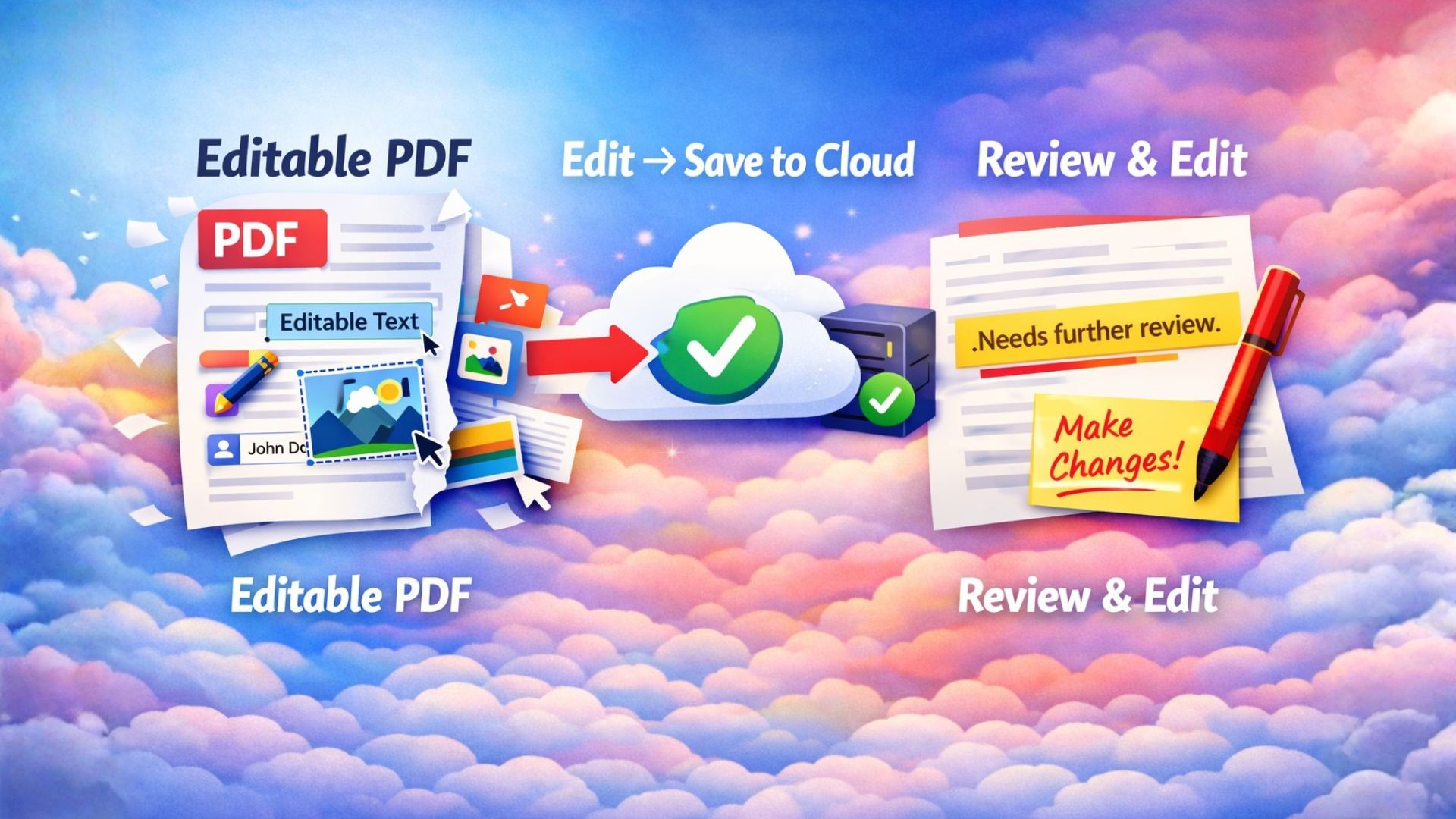
- Annotate the PDF in Seedr's built-in PDF editor: add text on top, highlight passages, draw, drop a signature image, fill form fields. Click Save edits and the marked-up copy saves back to your cloud.
- Convert more files (images to PDF, PDF to DOCX) in the same workspace.
The conversion is one step in a flow. One place to keep the source, the output, and the next thing you do with it keeps the flow short.
Wrap up
Word edits; PDF sends. Upload the DOCX, right-click Convert, done.
Was this article helpful?
Related Articles

How to open HEIC photos online on Windows, Android, or any browser
Open iPhone HEIC photos from any device in Seedr’s cloud viewer — no conversion, no codecs, no extra apps — and keep them organized alongside your other files.
Connect Seedr to Infuse (iOS, tvOS, macOS)
Learn how to easily connect your Seedr account to the Infuse app using WebDAV or FTP. View 4K media directly to your Apple TV or iOS device without saving.

Three ways to add links and files in Seedr V2
Learn how to use Seedr V2’s Link button to add media links, scan webpages, upload files from your device, and share to Seedr via PWA or browser extensions.