Downloading vs streaming in Seedr — when to use each

The old choice between "download the file" and "stream it" used to be a hard either-or. Seedr collapses both into one library: your files sit in the cloud, and you either press Play or press Save. This article is about when to use each, how to do both inside Seedr, and where the bandwidth and quality limits actually bite.

What this gets you
- A clear rule of thumb for when to download and when to stream.
- Concrete step-by-step for both inside Seedr.
- Honest numbers on quality, quota and device support.
What you need
- A Seedr account — free plan covers streaming and downloading for casual use.
- A browser for streaming; a browser, FTP/SFTP or WebDAV client, or mobile app for downloading.
- Pro or higher for FTP/SFTP; Master or higher for WebDAV and 4K streaming.
The short answer
- Stream when you want to watch now, from any device, with zero setup.
- Download when you need the file offline, want to archive it, or plan to feed it into another media app.
Most people end up doing both in the same week. Seedr is designed to make switching frictionless.
Setup, step by step
Streaming from Seedr (no install)
- Sign in to your Seedr dashboard.
- Click into the folder with the file.
- Click the file once. The built-in viewer opens.
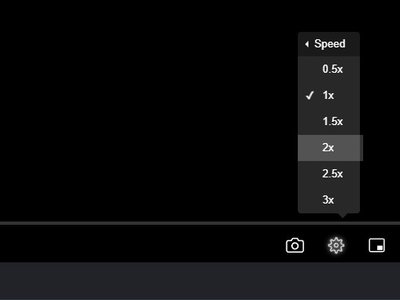
- Playback starts immediately. The gear icon switches resolution, audio track and playback speed. The CC button adds subtitles from OpenSubtitles or the local folder.
No app install. No transcoding setup. Works on any modern browser, including Safari on an iPad.
Downloading from Seedr
Three ways, pick the one that matches your use case.
- Single file via browser. Right-click the file → Save. It streams to your default browser download folder.
- Folder (small) via ZIP. Right-click the folder → Download as ZIP. Seedr packs it server-side; you get one file.
- Folder (large) via FTP/SFTP or WebDAV. FTP and SFTP are Pro and up; WebDAV is Master and up. Connect FileZilla to the FTP/SFTP endpoint or mount the WebDAV endpoint in your OS file manager. Drag the folder to local disk. Transfers resume if they break.
- Mobile. Open the file in the Seedr mobile web app, tap the three-dot menu, pick Save to device. The file lands in your Photos (for images/video) or Files app.
Troubleshooting
- Stream buffers after 30 seconds. You are close to your plan's bandwidth quota for the day. Free and Basic plans throttle after the cap. Upgrade to lift it, or wait until the counter resets.
- Stream plays in SD even after upgrading. The viewer picks quality automatically. Click the gear icon and force 1080p. Your plan has to actually support the higher tier at the time you open the file — upgrades can take a minute to propagate.
- Download in browser stops at 2 GB or similar round number. Some browsers on some OS combos still choke on multi-GB single-file downloads. Switch to FTP/SFTP or WebDAV for anything over ~4 GB.
- "File not available" mid-stream. Happens if the file was moved or deleted in another tab during playback. Refresh the library and reopen the file.
- Subtitles don't sync. Seedr's OpenSubtitles search offers a timing adjustment in the CC panel. Drag to compensate, usually ±2 seconds is enough.
- Converted files stream but original doesn't. Browsers cannot play some codecs (DTS audio in MKV is the main one). Right-click the original → Convert → MP4 (H.264/AAC) and stream the converted copy instead.
What works well and what does not
Streaming works well when:
- You are on a reasonable home connection.
- The file is H.264/H.265 MP4 or a well-formed MKV with AAC audio.
- You are inside your daily quota.
Streaming is frustrating when:
- The container uses DTS or TrueHD audio. Convert first.
- You are on flaky Wi-Fi and want 4K. Go 1080p or download.
- Your plan is free and you've already watched a couple of movies that day.
Downloading works well when:
- You have Pro or higher (FTP/SFTP) or Master (WebDAV) — those are the consistent speed paths.
- You want the file permanently off-cloud.
- You plan to feed it into Plex, Jellyfin, Infuse, Kodi, or another app you run locally.
Downloading has real limits:
- Free plans pace browser downloads. Large folders are much faster with FTP/SFTP on Pro and up.
- Your ISP, not Seedr, caps the top speed at the last mile.
- Mobile "Save to device" respects OS restrictions — iOS in particular hides files outside the Files app.
Wrap
Stream for convenience, download for ownership. Seedr is one of the few places you don't have to pick one and live with it.
Was this article helpful?
Related Articles
Playback speed control in Seedr V2
Control video playback speed in Seedr V2. Speed up or slow down videos for learning, entertainment, or accessibility.

Seedr V2 audio player — play music from your cloud
Preview Seedr's upcoming dedicated audio player. View your music library from the cloud with a clean, focused interface.

What to Do While Seedr Is Saving Your Files
Make the most of save time. Browse, organize, and queue files while Seedr saves your torrents in the background.