How to open ZIP and RAR files online without installing anything
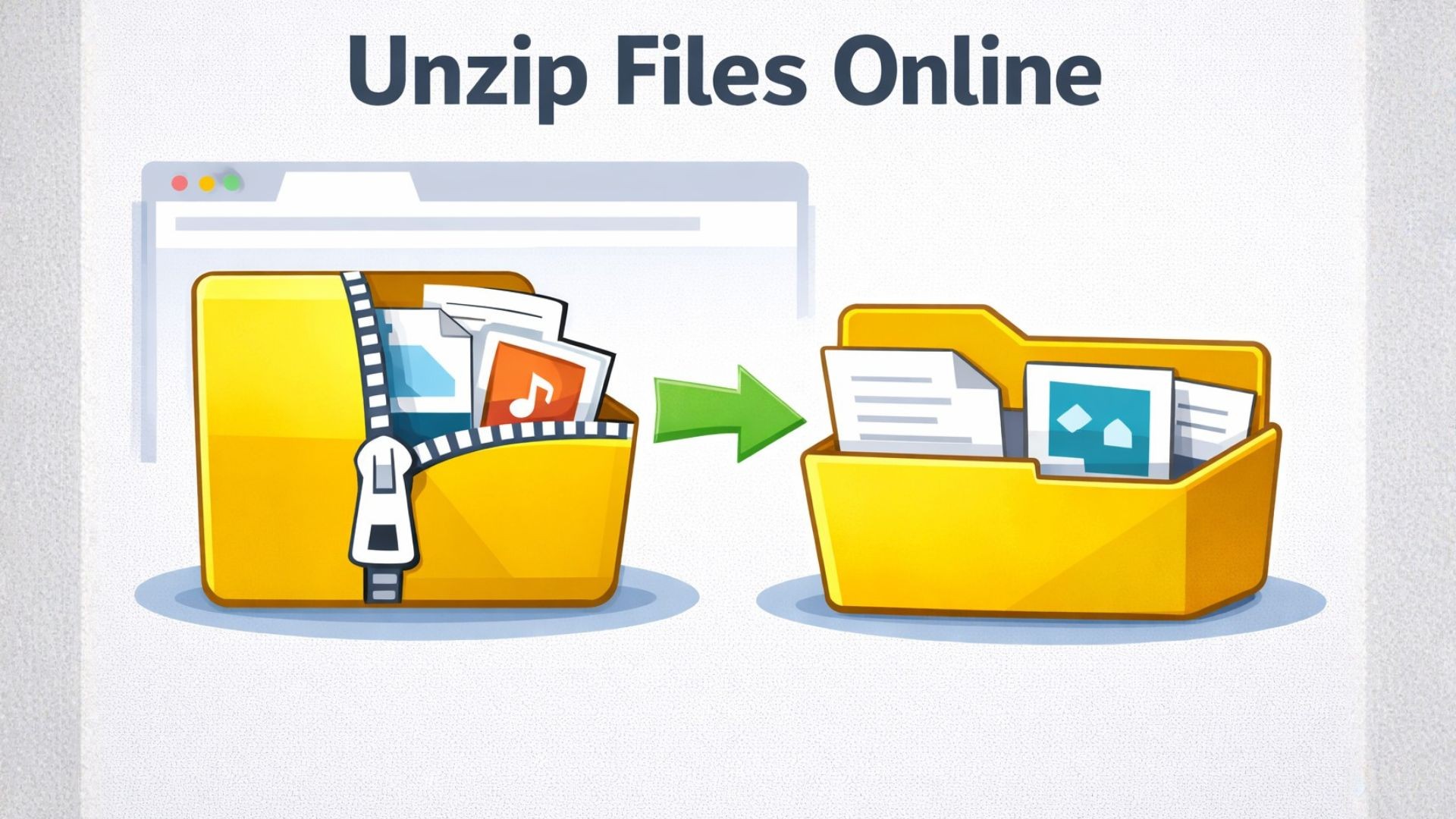
Open ZIP and RAR files online, no install required
Someone sent you a ZIP. Or you downloaded a RAR and the device you are on refuses to open it. Installing an extractor on a locked-down work laptop, a borrowed computer, or a phone is often more trouble than it is worth. Opening ZIP and RAR files online solves it in a browser, without putting anything on the machine.
This guide covers what these formats are, the usual ways people open them, how to do it in Seedr, and the edge cases where extraction fails.
What ZIP and RAR actually are
Both are archive formats. They bundle a set of files into a single container and usually compress them too. A ZIP of 50 text files is one download, and smaller than the sum of the originals because compression strips repetition out.
ZIP dates from 1989. It is the universal archive format. Windows, macOS, and every Linux distribution can open ZIP files with the built-in file manager. ZIP is lossless — the files inside are byte-for-byte identical to the originals.
RAR is a proprietary format from RARLAB. It compresses tighter than ZIP on some content and supports advanced features like multi-part archives (file.part1.rar, file.part2.rar) and recovery records. The downside is that extracting a RAR traditionally requires software — Windows does not open RAR natively, and macOS needs a third-party app.
You also run into 7z (the 7-Zip format, sometimes better compression), TAR, TAR.GZ and TAR.BZ2 (common on Linux), and older formats like ARJ and ACE. ZIP and RAR cover most cases an ordinary user sees.
The usual ways people open them
Plenty of options exist. The right one depends on the device and how often you do this.
- Built-in OS extraction. Windows, macOS, and Linux open ZIP out of the box. Right-click, Extract. Done. RAR is not supported natively on Windows or macOS.
- 7-Zip (Windows, free, open source). Handles ZIP, RAR, 7z, TAR, and almost every other archive format. The clear recommendation if you can install software.
- WinRAR. The official RAR extractor. It is nagware — the trial never expires, but it keeps asking you to pay. Extraction works even after the trial period.
- The Unarchiver (macOS). Free, opens RAR and 7z.
- Command line. unzip file.zip, unrar x file.rar, 7z x file.7z. Fast and scriptable.
- Online extractors like ezyZip, Archive Extractor, and others. Upload, extract, download. Quick for a single small archive. Most have file-size limits, ad-heavy pages, and retention questions — your uploaded files sit on their servers.
If you are on your own computer and extract archives regularly, 7-Zip or The Unarchiver is the right answer. Online tools pay off when you cannot install software or when the extracted contents need to live somewhere other than your local disk.
Doing it in Seedr
Seedr runs extraction server-side. The archive and its contents sit in your cloud; the browser stays responsible only for the UI.
- Sign in to Seedr and upload the ZIP or RAR file — drag and drop, use the file picker, or paste a link to fetch it from a URL.
- Wait for the archive to appear in your cloud.
- Right-click the file.
- Choose Extract.
- The extraction runs as a task. Open the Tasks tab to see progress.
- The extracted files appear in a new folder alongside the original archive.
- Open documents, images, and media directly from the folder, or download only the files you need.
If the archive contained a video, you can play it in Seedr's browser player without downloading anything. If it contained PDFs, they open in the viewer. Images show as thumbnails. The archive itself stays in your cloud until you delete it.
Tips and edge cases
Extraction fails for predictable reasons. A few to watch for:
- Password-protected archives. Some online extractors cannot prompt for a password. If you get a failure, the archive is probably encrypted. You will need a desktop tool that can take the password, or a service that specifically supports encrypted extraction.
- Multi-part RAR. Files named foo.part1.rar, foo.part2.rar and so on have to be extracted together. Upload every part before starting. Missing one part breaks the whole archive.
- Corrupt archives. A download that ended early gives a CRC error on extraction. Re-download the source.
- Very large archives. Free accounts have storage caps. Extracting a 50 GB archive needs room for both the archive and the expanded contents. Check your quota.
- Nested archives. A RAR inside a ZIP needs two extraction passes. Extract the outer, then the inner.
- Weird filenames. Old ZIPs sometimes use non-UTF-8 filename encodings (common with archives from China or Japan). Filenames can show as mojibake. The files themselves are fine; the names just look wrong.
- Archive bombs. A tiny archive that expands to terabytes is usually a DoS attack. Any good server-side extractor refuses them.
If extraction hangs, check whether the archive is actually a different format in disguise (a .zip that is really a .rar).
How this fits the rest of your workflow
The point of extracting to a cloud is that the next step is already there.
- Mount Seedr over WebDAV, FTP, or SFTP and the extracted folder appears as a local drive on your computer — no re-download of anything.
- Play extracted videos in the browser player or cast them to a TV.
- Convert extracted DOCX to PDF, or an MP4 to an MP3, with a right-click.
- View HEIC photos from an iPhone archive without any codec install.
- Save a single extracted file to your device instead of pulling the whole archive.
One place for the archive, the extracted files, and everything you do with them afterwards.
Wrap up
Upload the archive, right-click Extract, work with the files. No install.

Was this article helpful?
Related Articles
Edit a PDF online without Acrobat — what actually works
Edit or fill in PDFs directly in your browser with Seedr. Fix typos, update details, and complete forms without printing, scanning, installing Acrobat, or juggling separate tools.

We’ve Increased Storage Across Plans
We’ve increased storage across Seedr plans — up to 5x more space, more flexibility, and fewer limits.

Seedr v2 vs v1: what changed
A clear comparison of Seedr v2 and v1, covering the new file manager, faster fetching, built-in streaming, WebDAV support, and what existing users need to know.