Edit a PDF online without Acrobat — what actually works
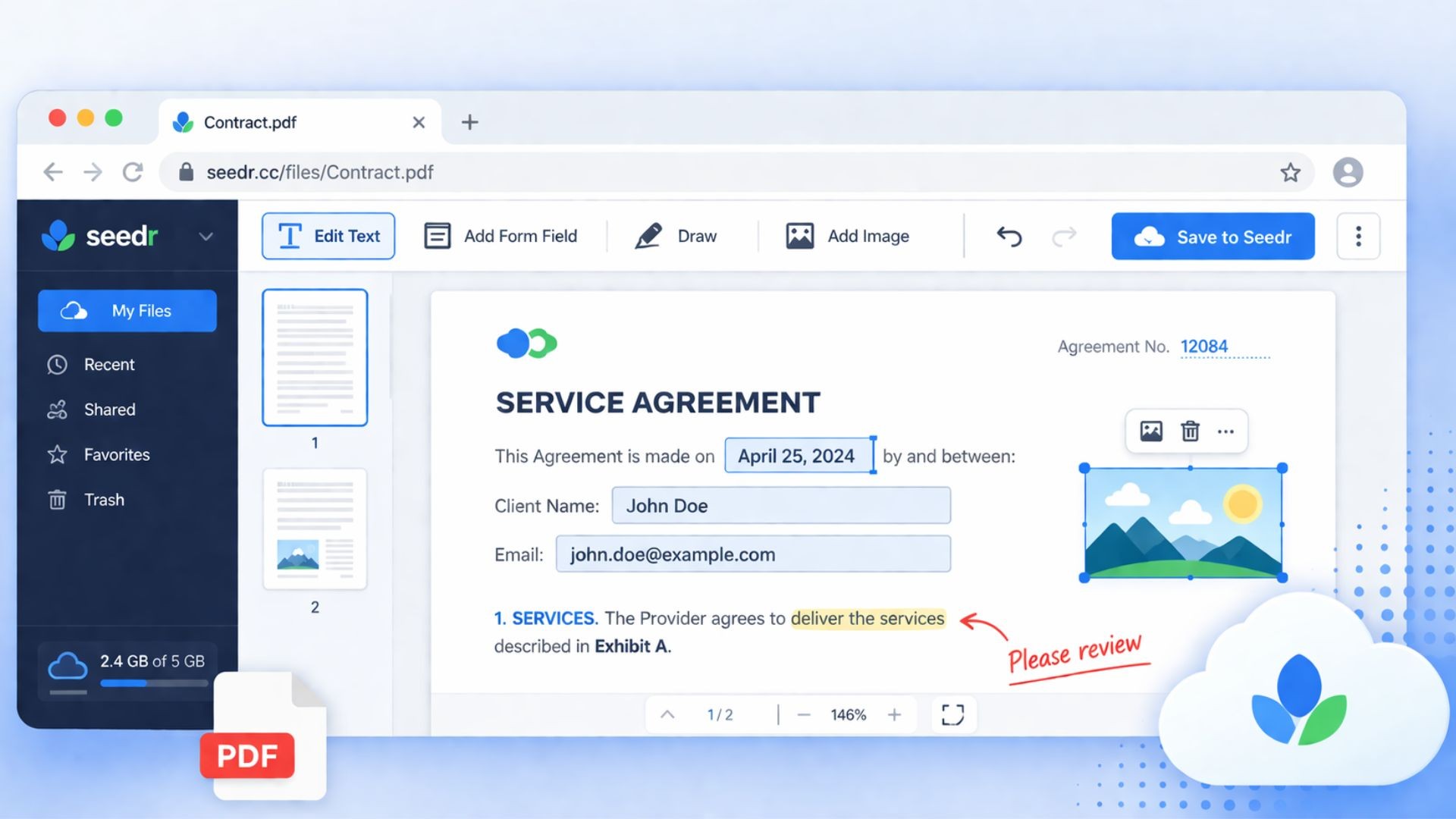
You need to fix a date on a signed lease. Add a signature to an offer letter. Highlight two clauses in a contract for your lawyer. The standard advice is "buy Acrobat" or "print, scribble, scan." Neither is great. What you actually want is a browser tab that lets you mark up a PDF and save the result back where you already keep your files.
This guide covers what in-browser PDF editing can and cannot do, the trade-offs of the popular options, and how the editor in Seedr works — including the new Save edits button that writes the annotated PDF straight back to your cloud.
✦ Premium: more space for everything ★ Risk-free · 7-day money-back · Cancel anytime
What "editing a PDF" actually means in the browser
PDFs were not designed to be re-flowed like a Word document. The file stores glyphs, positions, and fonts, not editable paragraphs. That distinction matters, because most online PDF editors advertise "edit text directly" and then deliver something much narrower.
What browser editors — Seedr's included — actually do is overlay new content on top of the existing page:
- Add a new text block anywhere on the page.
- Highlight, underline, or strike through existing text.
- Draw freehand — initials, redactions, a quick arrow.
- Drop in images and signatures.
- Fill form fields that the document was already built with.
What they do not do: rewrite the body text of the original PDF. If the original says "March 3" and you want it to say "March 4," the realistic fix is to add a small white rectangle (or highlight in white) over "March 3" and type "March 4" on top. This is how every legitimate browser-based PDF editor works, regardless of how the marketing reads. OCR'd re-flow editing is a separate, much heavier operation.
Be suspicious of any free tool claiming to rewrite body text. Most are either doing the overlay trick and describing it misleadingly, or uploading your file to a server you know nothing about.
The usual ways people edit PDFs
The common options, and where each one bites:
- Adobe Acrobat Pro. The real deal, including genuine text-reflow editing on supported PDFs. About $20/month, install required, and overkill if you edit a PDF twice a month.
- Free desktop apps (LibreOffice Draw, PDF-XChange). Install-gated and mostly similar overlay editing, sometimes with better tools. Doesn't sync between devices.
- Free online editors (Smallpdf, iLovePDF, Sejda). Similar overlay feature set. Most watermark output, cap file size, limit edits per day unless you subscribe, or require a sign-up before you can open anything. Privacy story is often vague.
- Print, mark up by hand, scan back in. Works. Slow. Needs a printer and a scanner. The scan is rarely as clean as the original.
For most people, the browser-overlay approach is what they actually need. The question is which editor lets them do it without the watermarks, limits, or a second account.
Doing it in Seedr
The Seedr PDF editor runs in the same tab as your cloud. Nothing installs, and the file you open is the file in your account.
- Open Seedr and upload the PDF (drag-and-drop, picker, or paste a link).
- Click the PDF to open it in the viewer.
- Switch into editor mode from the toolbar. You get tools for text, draw, highlight, image, and signature.
- To add text, click where you want it and type. Change the font size and color from the floating toolbar.
- To fill a real form field, click the field and type — Seedr detects the AcroForm fields the document ships with.
- To sign, pick the signature tool, draw or upload your signature, and place it.
- To highlight a clause, drag across the text with the highlight tool. Same for underline and strike-through.
- When you are done, click Save edits (bottom-right of the viewer). Seedr uploads a new PDF called <original-name>-edited.pdf next to the original. The source file stays untouched.
That last step is the one that used to trip people up. Earlier versions left you wondering whether changes were actually persisted. Now there is one button, one clear output file.
Tips and edge cases
A few things worth knowing before trusting this with something important:
- Scanned PDFs. If the PDF is a picture of a document (common for bank statements and old contracts), your additions still overlay fine — but you cannot select or highlight the existing words, because they are pixels, not text. OCR is a separate step.
- Password-protected PDFs. Remove the password first. The editor cannot modify encrypted content without the key.
- Very large PDFs. 500+ page scanned manuals can be slow to render in any browser editor. Split first if you can.
- Signatures with legal weight. Overlay signatures are fine for most business use. For legally binding e-signatures with an audit trail, use a dedicated e-sign service and save the signed result to Seedr.
- Copy sensitive originals first. Save-edits writes a new file, but it is worth keeping a clean original anyway.
How this chains with the rest of your workflow
Because the editor lives inside your cloud storage, a few small things add up:
- Merge then edit. Combine two PDFs first, then open the result in the editor.
- Convert, then edit. Right-click a Word doc, convert to PDF, annotate, keep the result in your cloud.
- Save the edited version to your device when you need a copy to attach or send off.
One tool, one login, one place.
Wrap
Browser PDF editing is overlay editing — and that covers the vast majority of real tasks. Do it in the same tab as your files.
Was this article helpful?
Related Articles
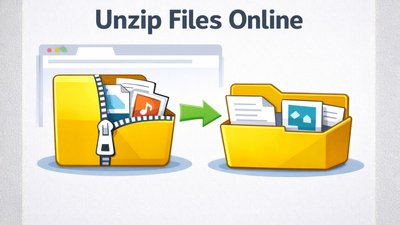
How to open ZIP and RAR files online without installing anything
Upload ZIP or RAR archives to Seedr, extract only what you need, and work with the files directly in your cloud — no WinZip, no WinRAR, no extra software.
We’ve Increased Storage Across Plans
We’ve increased storage across Seedr plans — up to 5x more space, more flexibility, and fewer limits.

Seedr v2 vs v1: what changed
A clear comparison of Seedr v2 and v1, covering the new file manager, faster fetching, built-in streaming, WebDAV support, and what existing users need to know.