Share to Seedr — add links without copy-paste (V2)

Send links to Seedr with one tap
Share to Seedr is live in V2. You can now send a link straight from the page you are on to your Seedr cloud. No copy-paste. No tab switching. It works on iOS, Android, and desktop.
Install the Seedr PWA once, then use the native share sheet or click the link. The save starts in the background.
Why we built this
Adding a link used to be a small but real hassle. You were on a page on your phone. You tapped the link. Your browser either asked "open with?" (and had nothing useful to offer), or nothing happened at all.
The workaround: long-press, copy link, open Seedr in another tab, paste into Add Link, submit. Five steps for a one-tap job.
This is even worse on iOS. Safari does not handle some link types natively. Tapping one on a Safari page just fails silently. Users were forced to switch to a different browser or manually copy the link.
We wanted a single gesture that works everywhere — phone, tablet, laptop — and keeps you on the page you are reading.
What changed
Share to Seedr in V2 adds Seedr to your device's native share sheet and link handling. With the PWA installed:
- iOS and Android: long-press a link, tap Share, pick Seedr. The save starts immediately.
- iPhone/iPad with Safari: Safari no longer blocks you. Share to Seedr sends the link without any copy-paste.
- Windows / macOS / Linux: click the link in Chrome, Edge, or Firefox. The browser hands it off to Seedr and the save begins.
Before Share to Seedr:
- Long-press link, copy.
- Switch app to browser.
- Open Seedr.
- Click Add Link.
- Paste, confirm.
After Share to Seedr:
- Long-press link, pick Seedr.
One gesture. No context switch. The file is already being fetched by the time you close the share sheet.
How to use it today
First, install the PWA:
- Open V2 Seedr in your browser.
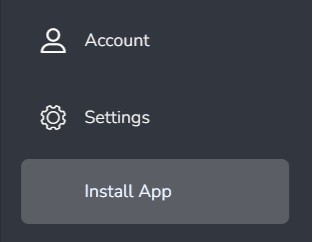
- Go to Account → Install App.
- Follow the prompt to add Seedr to your home screen or app launcher.
Then use it:
- Mobile: long-press any link — on a page, a forum post, anywhere — pick Share, then pick Seedr. That is it.
- Desktop: click a link. If your browser asks which app to use, pick Seedr. The save starts in your cloud.
If you do not see Seedr in your share menu, open Seedr once after installing the PWA. That registers it as a share target.
If a link opens the wrong app on Windows
- Open Settings → Apps → Default apps.
- Choose defaults by link type (on Windows 10, "by protocol").
- Set the link type to your browser.
- Click the link again. When the browser asks, choose Seedr.
Quick FAQ
Does this work in any browser? Yes. Chrome, Edge, Firefox, Safari. The PWA must be installed.
Safari still won't open some links directly — why? Safari does not handle every link type natively. That is an iOS/Safari limitation. With the PWA installed, use the Share menu instead of tapping the link.
I don't see Seedr in the Share menu. Install the PWA first (Seedr → Account → Install App). Open Seedr once after install. Then share.
What is next
We are working on:
- Broader link-type coverage for one-tap sharing.
- Better handling of multi-file jobs — pick which files to save before the transfer starts.
- A desktop browser extension that makes the flow even faster on Chrome and Firefox.
Wrap
One gesture replaces five. Share a link from anywhere, keep reading the page you are on, let Seedr pull the file down in the cloud.
Premium accounts get V2 access within about a week. Free accounts can join the V2 waitlist.


Was this article helpful?
Related Articles

We’ve Increased Storage Across Plans
We’ve increased storage across Seedr plans — up to 5x more space, more flexibility, and fewer limits.

Seedr Google TV app: try it before the open beta
Seedr’s Google TV app launches next week. Try the beta early, stream your videos on TV without casting, and watch in up to Full HD and 4K with Premium.
Merge PDF files online — free and no software needed
Combine multiple PDFs into one clean document in seconds. This piece explains when that actually matters (visa forms, job applications, client proposals, monthly admin), how to do it in Seedr with a simple upload–select–reorder–merge flow, and why it’s different from typical online tools that add watermarks, size limits, or signup walls. Instead of dumping a merged file onto your device, Seedr keeps it in your cloud—private, accessible from anywhere, and sitting alongside your other documents, media, and archives so you are not juggling five separate apps.