Chromecast and AirPlay, rebuilt in Seedr V2

Casting in Seedr V2, rebuilt from the engine up
Seedr V2 ships a rewritten casting engine for Chromecast and Apple AirPlay. Faster starts, cleaner reconnects, subtitle and playlist picking, audio casting, and standard TV-remote control. Up to 4K on Master, network permitting. Works with Chromecast, Google TV, and AirPlay-capable screens.
Why we rebuilt casting
The old casting path worked, right up until it did not. If your Wi-Fi blipped, you started over. If your file had external subtitles, you might or might not get them. Audio-only casts were not really supported. Your TV remote sat on the couch doing nothing while you walked back to your phone every two minutes.
We kept hearing the same things:
- "Casting dies if my Wi-Fi stutters for one second."
- "I want subtitles and I do not want to pre-convert my file to get them."
- "Why can't I cast the audio player the same way I cast video?"
- "Let me pause from the remote, not the phone."
So we rewrote the cast engine instead of patching around it.
What's new
Before: Single-file casting, external subs were hit-or-miss, full session restart on any network blip, no audio-only casting, no meaningful remote support.
Now:
- New cast engine for both Chromecast and AirPlay. Faster handshake, cleaner start.
- Playlist and subtitle picker before cast starts — and switchable during playback.
- Audio-player casting so you can send music to a speaker the same way you send video to a TV.
- TV-remote control. Play, pause, seek forward and back, next and previous. No need to grab your phone for every interaction.
- Up to 4K on Master plans, limited by device and network.
- Faster reconnects. If your Wi-Fi blips, Seedr tries to recover the session without making you restart from scratch.
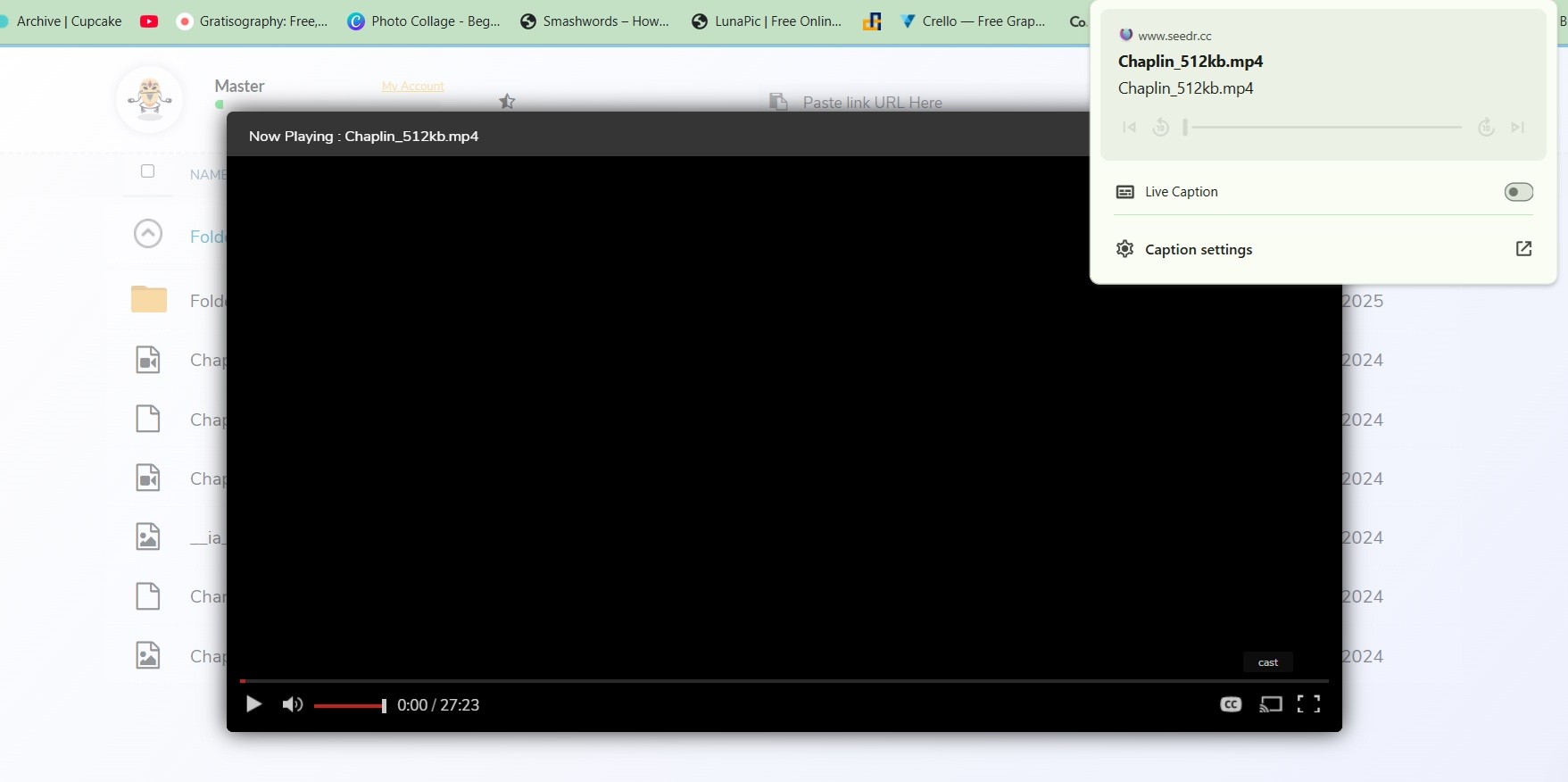
Works on: Chromecast, Chromecast built-in, TVs with Google TV, Apple TV, and other AirPlay-capable receivers.
How to cast today
Video:
- Open any video in Seedr V2.
- Tap the Start casting icon (bottom-right of the player).
- Pick your device. Chromecast, Google TV, or AirPlay all show in the same list on their respective platforms.
- Pick your playlist item and subtitle track. You can change subtitles mid-cast.
- Use your TV remote for play, pause, seek, next, and previous.
Audio:
- Open the audio player in Seedr V2.
- Tap Start casting.
- Pick your speaker or AirPlay target.
- Queue is respected; skip and previous work from the remote.
Common questions
- Does this work with Google TV? Yes. Chromecast with Google TV and TVs with Chromecast built-in are the same target from Seedr's point of view.
- Do subtitles work while casting? Yes. Pick before you start or switch mid-playback.
- Can I cast audio only? Yes. The audio player has its own Start casting control.
- Does my TV remote work? Standard actions only: play, pause, seek, next, previous. No menu or chapter-style navigation.
Roadmap
Still in progress:
- Caption style controls (size, colour, background) while casting.
- Player bar polish for long episode lists and complex playlists.
- Edge-case receiver support — if you have a specific TV or AirPlay setup where casting behaves oddly, email support@seedr.cc with a short note and a screenshot. Real bug reports directly shape what we fix next.
Honest limit: 4K casting depends on your Chromecast or Apple TV generation, your Wi-Fi, and your plan. Master unlocks 4K from Seedr's side; the receiver and network still have to cooperate.
One cast button, many screens
Open a video, tap cast, pick your screen. Subtitles, playlists, and remote control just work. For audio, same idea, different player.
Was this article helpful?
Related Articles

We’ve Increased Storage Across Plans
We’ve increased storage across Seedr plans — up to 5x more space, more flexibility, and fewer limits.
Seedr Google TV app: try it before the open beta
Seedr’s Google TV app launches next week. Try the beta early, stream your videos on TV without casting, and watch in up to Full HD and 4K with Premium.
Merge PDF files online — free and no software needed
Combine multiple PDFs into one clean document in seconds. This piece explains when that actually matters (visa forms, job applications, client proposals, monthly admin), how to do it in Seedr with a simple upload–select–reorder–merge flow, and why it’s different from typical online tools that add watermarks, size limits, or signup walls. Instead of dumping a merged file onto your device, Seedr keeps it in your cloud—private, accessible from anywhere, and sitting alongside your other documents, media, and archives so you are not juggling five separate apps.